
Gmail POP and Gmailify are ending: how to keep your other email accounts
Gmail ends POP fetching and Gmailify in January 2027. Compare your options and connect Gmail, GMX, WEB.DE and other supported accounts directly to Franz Mail.
You may have used Gmail as the place where mail from several addresses arrived. A GMX account for personal messages, a WEB.DE address you've had for years, and Gmail for work. Those addresses still matter, even when the way you read them changes.
Google is retiring Gmailify and the web feature that fetches other accounts through POP. Existing users can use it until January 2027; new users lost support after the first quarter of 2026. Messages already imported stay in Gmail. Direct connections in the Gmail mobile app and access to Gmail from other mail clients remain available. 1
You can keep your addresses and connect the accounts directly to a desktop mail client. This guide explains the choices and shows the setup in Franz Mail.
First, check which setup you use
Open Gmail's settings and look at Accounts and Import. If you use Check mail from other accounts to pull in a non-Google address, this is the workflow to replace. Also check whether you connected an account through Gmailify or configured an external sending address.
Google separately says external Send as support ends in January 2027. Google-hosted Gmail and Workspace identities are exempt. Forwarding incoming messages remains an option. Sending through a primary Gmail account's external identity is distinct from adding a separate account to the mobile app. 2
Write down the addresses you actually use and where their old messages live. That small inventory makes the next step clearer: you need a way to read and reply from each account, with the right sender selected.
Which alternative fits your day?
| Your goal | How to do it | What to check |
|---|---|---|
| Keep reading mail in Gmail on the web | Forward incoming mail from your provider to Gmail. | Test how you'll reply from your existing address too. Forwarding alone doesn't set up outgoing mail. |
| Read mail on your phone | Add the account directly in the Gmail mobile app. | This connection is separate from an external Send as identity in your main Gmail account. |
| Use all your accounts on your computer | Connect the accounts directly to a mail client such as Franz Mail. | Check the provider login requirements and where your older mail is stored. |
| Keep the familiar interface | Use your provider's website or app. | You'll still check separate inboxes if you use several providers. |
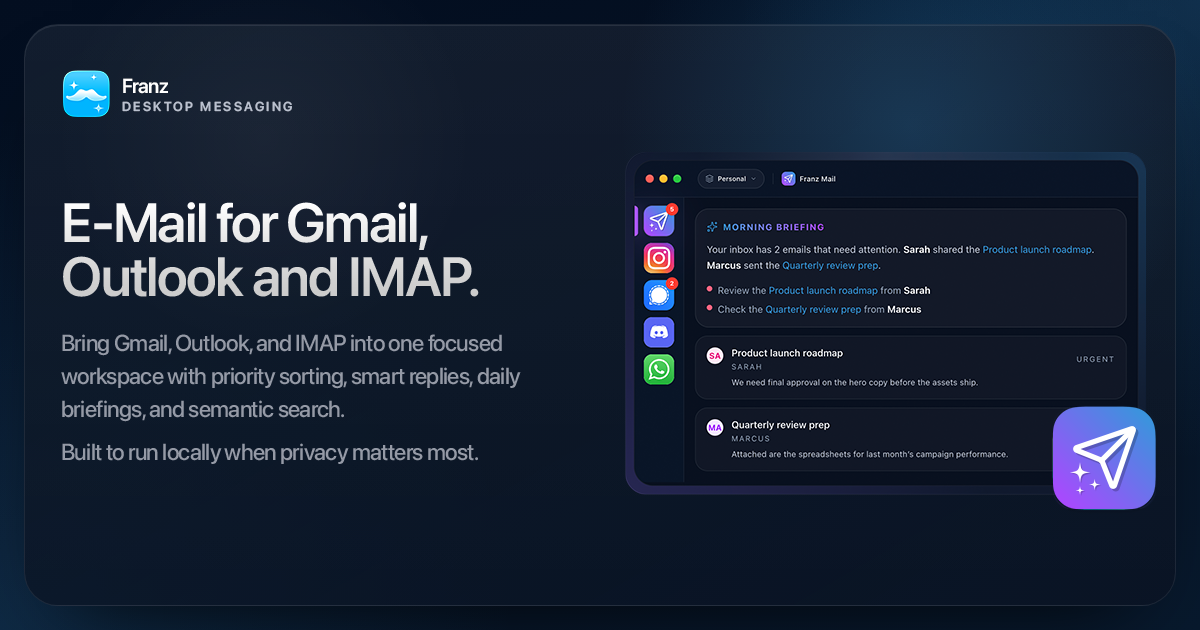
Franz Mail fits the desktop option. It connects your accounts to a native mail experience inside Franz, alongside the chat services you already use. You keep your providers. Your contacts keep writing to the same addresses.
Connect Gmail and GMX directly to Franz Mail
Start with two accounts you recognize. For example, your Gmail address and your personal GMX account. Once receiving and replying work as expected, add the others.
1. Prepare the provider account
GMX and WEB.DE require you to enable external POP3/IMAP access in webmail before another mail app can connect. In their email settings, open POP3/IMAP under the receiving section and allow access. Follow any security check shown by the provider. 3, 4
If your provider requires an app password, prepare that through its own account settings. The saved provider configuration helps with setup; it doesn't bypass the provider's authentication rules.
2. Add each account in Franz
Open Settings → Accounts and add an account. Choose Gmail and complete the Google sign-in. Choose Mail when Franz asks what to use the account for.
For GMX, choose its provider entry and follow the guided setup. Review the connection details and enter the credentials the provider requires. Enable Mail for the connected account. WEB.DE follows the same preparation pattern, using its own provider entry and credentials.
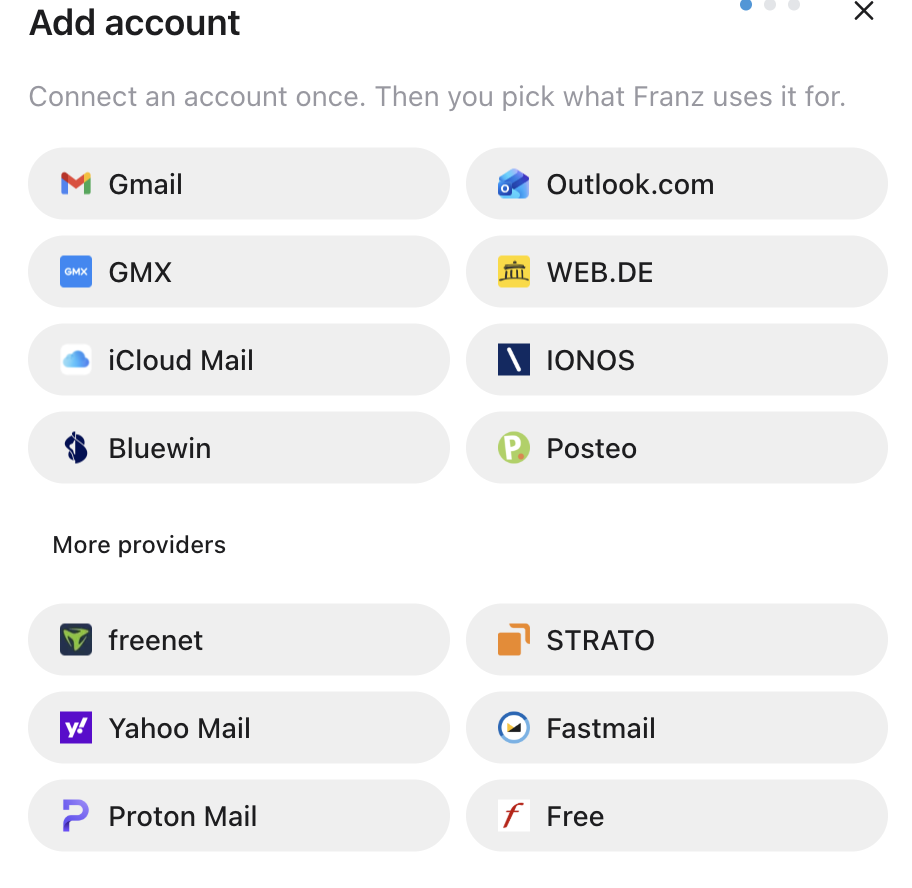
The account connection is separate from adding Gmail as a web Service in Franz. A web Service opens Gmail's familiar interface. Franz Mail reads your connected accounts directly. Use that native Mail path for the combined inbox described here.
3. Check receiving and replying before changing Gmail
Keep your current setup while you test the new one. Send yourself a message from another address, open it in Franz Mail and reply. Check the sender field before sending, then confirm the reply arrived from the address you intended.
Repeat that check for each account. Also look for a message with an attachment and a message in a folder you use. Let the first sync progress before judging which history is available.
You don't need to move your domain or ask contacts to update their address book to connect an existing supported account. An additional alias or unusual sending configuration deserves its own test; connecting the main account doesn't establish that every alias behaves the same way.
What happens to your old mail?
A direct IMAP connection shows the mail available at that provider. If a POP setup removed older mail from the original server, those messages may exist only in Gmail or a local archive. Mozilla's POP-to-IMAP guidance makes the same distinction between local messages and server mail. 5
Before removing the old connection, compare a recent conversation and an older one in both places. Keep any separate archive you still need. Adding the original provider to Franz won't automatically recover messages that are no longer on that provider's server, import Gmail-only history into another account, or remove duplicates across accounts.
What you get after connecting
Your next step is no longer deciding which provider tab to open. Franz Mail brings connected accounts into one inbox, shows which account each message belongs to, and lets you search across them.
The Magic Bar gives you a quick place to start a search and apply filters. Continue with those filters in Franz Mail, where semantic search can add results related to the content. Locally indexed messages remain searchable when you're offline. Priority hints and daily briefings help with the work that follows finding the message: deciding what needs a reply or a closer look.
You can see the current providers and the Mail interface on the Franz Mail page. If your provider isn't listed, check its IMAP and SMTP support before attempting a manual connection.
Check that each account is set up correctly
Before you turn off POP fetching for an account in Gmail, test it in Franz Mail:
- Send a test message to the address and check that it arrives in Franz Mail.
- Reply to the test message. In the other inbox, check that the reply came from the right address.
- Open a message with an attachment and the folders you use regularly.
- Check where your older mail is stored: with the provider, in Gmail or in a local archive.
- Test any forwarding rules or additional sending addresses separately.
Once receiving and sending work and you can still find your older messages, you can turn off POP fetching for that account in Gmail's settings. Keep the original provider account. Your email address stays the same.
Sources checked on October 30, 2026. Google's timetable and provider setup requirements can change; the primary sources below are the reference for those details.
- Gmail
- IMAP
- Gmailify
- GMX
- WEB.DE